• Skip to primary navigation
  • Skip to main content
  • Skip to footer

Keppie Careers

Social media speaker, social media consultant, job search coach

  • About
    • Expert Job Search and Social Media Consultant / Speaker
  • Services
    • For Job Seekers
    • For Entrepreneurs
    • Social Media Coaching and Consulting
    • Speaking/Keynotes
  • Resources
    • Sample Resumes
    • Quoted In
  • Books
  • Blog
  • Contact

How to update your LinkedIn public profile URL

January 25, 2011 By Miriam Salpeter

Maybe you’ve heard that job search is moving beyond job boards and LinkedIn is the target of choice for many recruiters and hiring managers? This is not news; I have been sharing this information for years! A recent Wall Street Journal article reiterated the fact that many companies are looking at online social networks, such as LinkedIn, instead of advertising positions on job boards.

Need help knowing what to say when you look for a job?
Check out my new book: 100 Conversations for Career Success

I’ve written quite a bit about how to optimize your LinkedIn profile. From your headline to your summary and skills to how you describe your experience, education, patents, etc…and everything in between. Today, I thought I’d point out a basic fix for LinkedIn that you may not realize is important: your LinkedIn public profile URL. This is mine (at the bottom of the picture):
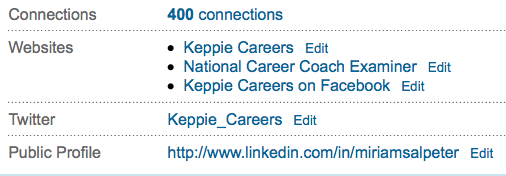
Unless you updated your URL, it has a bunch of random numbers after your name. In other words, it would not be something you will want to copy an paste on your resume for people to find your LinkedIn profile, and it won’t be easy to share as part of your e-mail signature.

It’s very easy to update this URL to a “vanity” link. Simply EDIT your profile in LinkedIn and click on “Edit” at the end of where it shows your Public Profile (as shown above). You’ll see a screen that looks like this (I’m only showing the top):
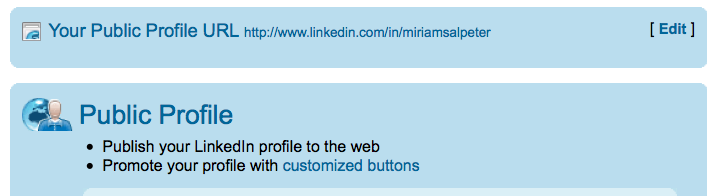
Simply select to EDIT your public profile URL from this screen (right at the top). You’ll then see:
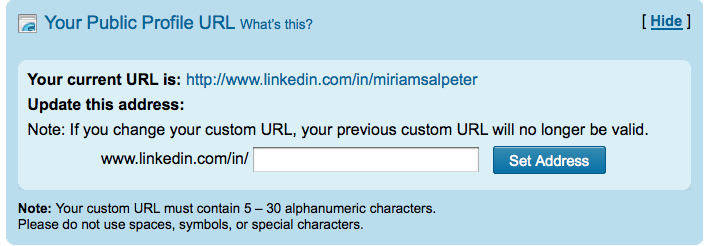
The page will list your current URL and give you the opportunity to update it to your name (if it is available). Try filling in your first and last name and click “SET ADDRESS.” If it is not available, try different combinations of your name with a middle name, or even use your credentials: JaneSmithMBA, for example. The goal is to have an easy-to-use URL that looks like it makes sense when you post it on your materials.

Once you find something that works and select “Set Address,” you are ready to go!

Having a vanity URL is important since it gives you an easy link to share, but it also makes you appear to be someone who knows what you are doing on LinkedIn — you’ll seem more socially media savvy than the next guy!

photo by tychay

Filed Under: Social Networking Tagged With: career coach, how to find a job, how to use linkedin, keppie careers, linkedin, LinkedIn public profile URL, Miriam Salpeter

How to use Facebook for your job hunt

January 17, 2011 By Miriam Salpeter

In the ever-changing face of social media tools, more and more applications and companies are focusing how how to use Facebook’s social graph of over 600 million users for professional networking purposes.

If you regularly use Facebook, it’s not news to you that they updated their settings and redesigned your “home” Facebook page. If you don’t regularly review your own Facebook profile, it may be time to start! It is important to know how your profile looks to others and to use it to your advantage. Visit your page and click on PROFILE.

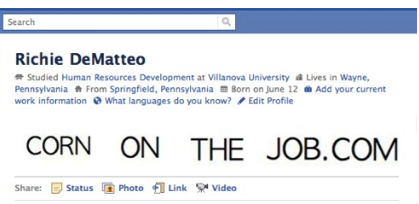
You can see that it now displays photos as well as information about where you went to school, where you work, where you are from and your relationship status. In the past, this was data users only found if they went looking through the various tabs on your profile.

If you are clever, like Richie DeMatteo of CornOnTheJob fame, you can use this new set up to market your job hunt. He tagged himself in some messages and posted them to illustrate how you may manipulate the newest Facebook design to your advantage:

You can see CORN ON THE JOB instead of the photos that would normally be in those spots. Fun and original!

The design means that it is much easier for people to to learn more about you without much effort.

Learn how to use photos, the education and work section, languages and privacy settings to your advantage on my Job-Hunt.org column…

photo by jaycameron

Filed Under: social media, Social Networking Tagged With: Corn on the Job, how to design a facebook page, how to find a job, keppie careers, Miriam Salpeter, Richie DeMatteo, use Facebook for your job hunt

How to ask for LinkedIn recommendations

January 16, 2011 By Miriam Salpeter

You’ve probably seen it on LinkedIn — “6 people have recommended Bill,” or “16 people have recommended Sue.” Having at  recommendations on LinkedIn will help people recognize your strengths.

There are a few best practices when it comes to asking for recommendations on LinkedIn:

  • It is not not necessarily better to have a lot of endorsements. You don’t need 58 recommendations. In fact, some people say that they are suspicious when people have what they consider excessive numbers of endorsements. I was once conducting a workshop, and a participant found a colleague who had a lot of recommendations — I can’t remember exactly how many, but a lot! She said, “Wow, that’s impressive.” Upon further investigation, each recommendation was reciprocal — that is, she had endorsed everyone who endorsed her. All of the sudden, it seemed less impressive. Which leads us to…
  • Be sure not all of your recommendations are “you endorse me and I’ll endorse you.”

It’s easy to ask for a recommendation on LinkedIn. (Maybe a little too easy!) All you need to do is click through to “Privacy and Settings” and under the “Profile” tab, click “Manage Your Recommendations.”  Click “Ask for Recommendations” on the top toolbar. Then, you can choose the job you want a recommendation for and select people to ask for the endorsement.

Here are some tips to get the best recommendations possible:

  • NEVER ask more than one person per message. Each recommendation request should be personalized and specific to the endorser.
  • Recognize the most people have no idea what to say and can use some guidance. It is your job to help steer your recommenders along the right path. For example:

“I am updating my LinkedIn profile, and I’d be honored if you would write a recommendation for me. While I am not currently looking for a job, the skills most important in my field include:  customer service/communication abilities, being self-directed and deadline-driven, as well as paying attention to details and having an inquisitive nature. I hope you will be able to comment on any of those in your note. I have an updated LinkedIn profile if you’d like to review it.”

If you need help updating your LinkedIn profile, contact me!

Providing information that helps your colleague or former supervisor know what you want him or her to say goes a long way to ensuring a) he or she actually writes out a reply and b) the recommendation has information that is actually useful to you.

It’s up to you to steer your career and job search related information. Follow these links for additional information about asking for recommendations:

Be sure to vet your references.

10 tips to land the best work references

Keep in touch with job references.

Prepare your references for job search success.

photo by .michael.newman.

Filed Under: social media, Social Networking Tagged With: asking for recommendations, career coach, how to get a jb, how to use linkedin, keppie careers, linkedin, Miriam Salpeter, references for a job search

How to find people on LinkedIn?

January 10, 2011 By Miriam Salpeter

I wrote about LinkedIn this week and about how to subscribe to RSS feeds for the Answers section. Before I published the post, my friend Hannah Morgan, AKA @careersherpa, contacted me to ask if I’d  contribute a suggestion to help readers find great people to connect with on LinkedIn.

There are so many great ways, but since I had LinkedIn’s Answers on the brain, I replied:

Using LinkedIn’s Answers is one way to expand  potential connections. Often, when I ask a question, people who answer it will request to connect, or if I answer a question, people who asked it may request that we “link in.” If you are asking and answering questions related to your field, you may “meet” people who could be great networking contacts you wouldn’t otherwise know.

A lot of our colleagues offered great ideas to help you find people via LinkedIn on Hannah’s blog. Be sure to visit CareerSherpa.com for all the suggestions!

photo by 99zeros

Filed Under: Career Advice, Social Networking Tagged With: career networking, Career Sherpa, Hannah Morgan, how to find a job, how to find people on Linkedin, how to grow your professional network, keppie careers, linkedin, Miriam Salpeter, professional networking

Job seekers and entrepreneurs: subscribe to LinkedIn’s Answers

January 9, 2011 By Miriam Salpeter

Whether you are currently looking for a job (or just thinking about beginning a job hunt) or if you are promoting your own business, it is important to do what you can to stand out of a crowd of people. U.S. News & World Report says there are statistically five unemployed people for every job, compared to an average of 1.7 people for every job in the three years before the recession.

One way to help you demonstrate your expertise is to share your thoughts via LinkedIn’s Answers section.

If you are not familiar, LinkedIn’s Answers offers a venue for people to ask and reply to questions about all different topics. The questions run the gamut; some seem silly, but others are quite serious. A quick review shows the following as current questions:

  • Is it time for the Cinema industry to rethink its business plan?
  • How will the recent tax bill effect solar and renewable energy finance?
  • Pick a letter in the alphabet and write a sentence using letters in the alphabet in order… Example: “A big cat does everything”…
  • Looking for virtual purchasing guest lecturers in GA 400 Corridor.

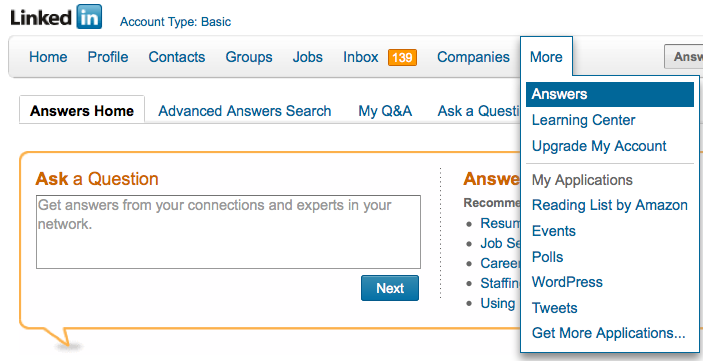
To find questions to answer, follow the MORE tab along LinkedIn’s top toolbar. Select Answers. (See the figure below.) To search based on topics (For example: Administration, Business Operations, Business Travel, Career and Education, Conferences and Event Planning, etc.), select Advanced Answers Search (right next to the Answers Home tab). Select the topics of interest and click on SEARCH.

Read through the questions, choose the ones you are interested in answering and reply in the form provided. LinkedIn allows you to suggest other LinkedIn contacts to answer the question and offers the opportunity to share a link in reply to a question. If you have a blog, you may consider replying via your blog and sharing the link. Or, you may already have a post that provides a good answer; share that link.) You can even reply privately to the questioner if you do not want your answer to be public.

Answering questions and demonstrating your expertise will help alert others in your industry and those interested in your work (whether you are a job seeker or entrepreneur) that you are willing and able to serve as an expert. In fact, I connected with my very first online client after answering some career oriented questions and hired my first web developer after he answered my question

One way to keep track of questions you might want to answer is to subscribe to the RSS feed of a topic of interest. If you are not familiar, RSS stands for really simple syndication. It is a way to receive information either via a “reader” or in your email, so you don’t need to personally visit every website or blog you enjoy to see if there is new information (or a new question). Common Craft has a great video to describe RSS.

(If you don’t use a feed reader already, maybe it is time! I use iGoogle, which you can use by signing up via your Google account. The video points out how to get started.)

Here’s how to subscribe to LinkedIn’s Answers:

From LinkedIn’s top toolbar, select MORE, then select ANSWERS.

Scroll down…

On the right side of the screen, you will see a column called BROWSE.

Select any topic from the list. (For example, “LAW AND LEGAL”).

Once you selected it, scroll down again.

At the bottom of the column, it will now have a little orange RSS symbol (shown to the right) and it should say:

Subscribe to new question in:

Law and Legal

Click on it.

Select the feed reader you use, for example, I use GOOGLE.

Choose to add to your reader or your homepage.

You’re done!

Subscribe to as many as you’d like, or  just plan some time every week to review questions in LinkedIn.

Stay tuned for more ways to demonstrate your expertise and stand a head above the rest!

Filed Under: Career Advice, Networking, Social Networking Tagged With: how to find a job, how to market your expertise, how to subscribe to LinkedIn's answers section, job search, keppie careers, linkedin, LinkedIn for job search, Miriam Salpeter, Personal Branding, small business owners

  • « Go to Previous Page
  • Page 1
  • Interim pages omitted …
  • Page 10
  • Page 11
  • Page 12
  • Page 13
  • Page 14
  • Interim pages omitted …
  • Page 21
  • Go to Next Page »

Follow Us!

  • Facebook
  • Instagram
  • LinkedIn
  • Pinterest
  • Twitter

Be an Insider: Sign Up to Receive Special Offers & Free Gift


About Keppie Careers

Are you a job seeker or business owner? You’ve come to the right place!
Click here to find out more.

Contact Us

Have a question or comment?
Click here to Contact Us.
© Copyright 2024 Keppie Careers